A word of caution
Since this is software that is still incomplete (and kind of buggy), these are just my initial thoughts on an OS that’s sure to see some refinement between now and its final release in the fall. If you’re thinking of upgrading yourself, you’ll need one of the following: a MacBook Air or MacBook Pro from mid-2012 or later; an iMac or Mac mini from late 2012 on; a MacBook from 2015 or later; an iMac Pro from 2017 and on; or a Mac Pro as old as the late 2013 model. Basically, any recent Mac will do.
If you take the plunge, remember to back up your files first. There’s always inherent risk in downloading beta software on your main machine. In this case, though, I’d be especially careful: Though the current release has been stable enough for me to carry on through a normal workday, it’s also buggier than some other Apple betas I can remember testing. So far, the fun times have included the Photos app crashing every time I try to exit full screen (it now only loads in full screen) and the Notes app deciding my lists would be better in mixed black and yellow font, with random words underlined, and links to Google docs mixed up with GDocs links from other notes. Everything is fine!
Goodbye, iTunes
One of the most memorable moments in Apple’s WWDC 2019 keynote was when software chief Craig Federighi playfully poked fun at how bloated iTunes is. “One thing we hear over and over,” he asked. “Can iTunes do even more?” Cut to a render of iTunes with a calendar, mail app, web browser inside. It’s true, what was once a revolutionary way to organize and consume music has become a test of patience. Apple clearly agrees. iTunes for the Mac is now a thing of the past, though it lives on in Windows. In its place are dedicated apps for music, podcasts and TV. And, as you might expect, they each take design cues from their iOS counterparts.
Music

One of the best things about the new Music app — and this drew tons of cheers at WWDC — is the fact that when you plug in your iPhone, you won’t immediately auto-launch iTunes. Now, if you want to sync your phone, you can do it from the left pane of the Finder. Isn’t that more civilized?
The app itself has gotten a facelift, but still shares DNA with the last version of iTunes. Navigation largely happens from the left pane, with Apple Music getting top billing. On tap are For You, Browse and Radio tabs, with options just below for artists, albums and songs you have stored locally. (Yes, you can still rip CDs.) And, of course, there’s a tab for the iTunes Store, and another for Genius playlists, which have lived on. You can also click through by device to see what you’ve stored where. Like I said, just because the app has been streamlined, that doesn’t mean it’s fundamentally different from the thing it’s replacing.
TV

The TV app looks a lot like what you’ll find on Apple TV, which makes sense. There are sections for Watch Now, Up Next and Apple TV Channels, which lets you watch content from heavy hitters like HBO, Showtime and Starz. There are also dedicated movies and TV tabs, along with an editorially curated kids section. If you’ve ever download movies or TV episodes from iTunes, you’ll see that too in the Library section. And, as you might expect, if you pause a movie or show on one device, you can pick it up on another where you left off. That makes sense given Apple’s push to bring “continuity” to as many of its apps as possible. And, you know, it’s a feature we’ve already come to expect on rival services like Netflix
Podcasts
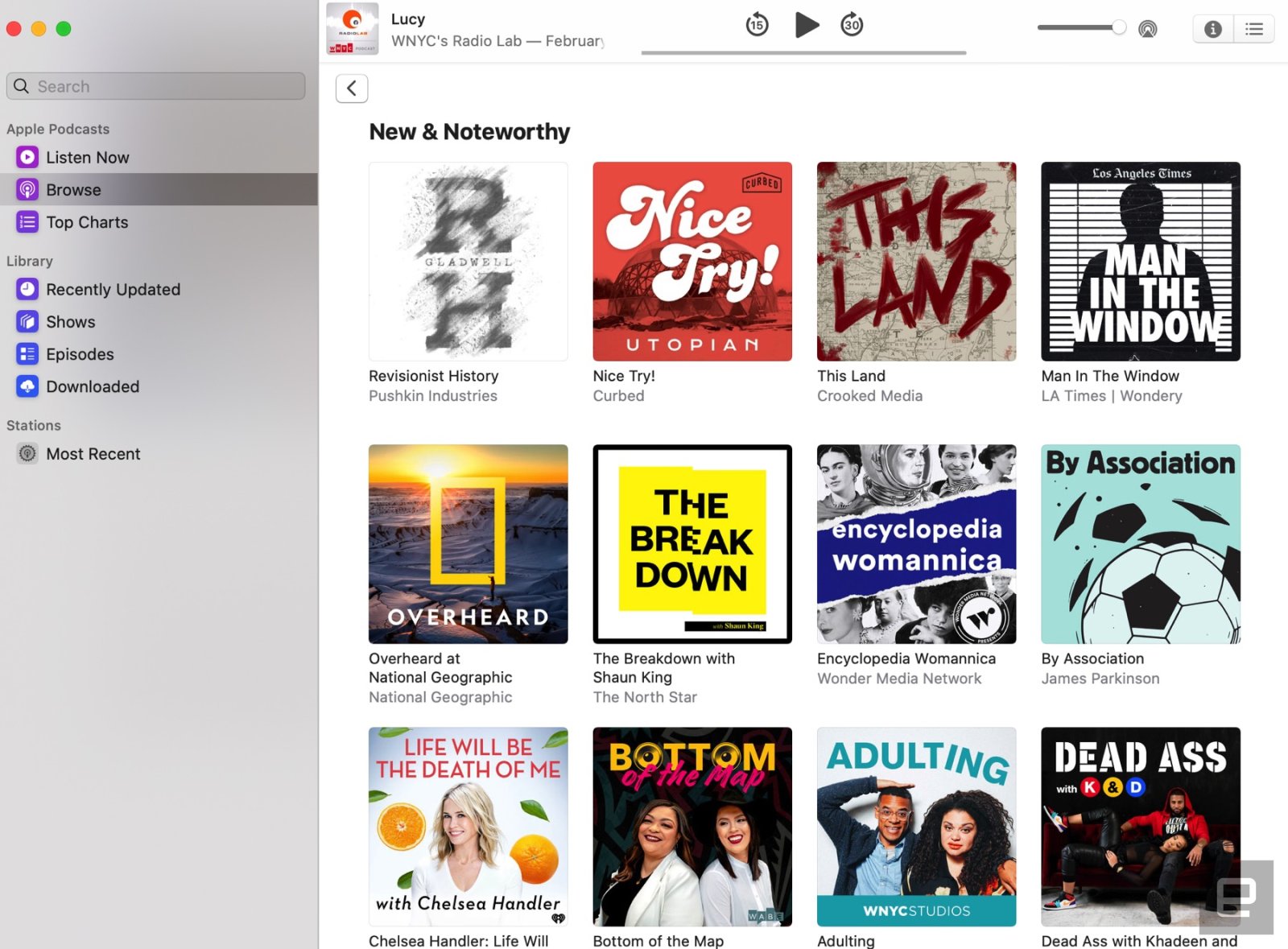
Podcasts has long had its own app on iOS, so it only makes sense that it broke free on the Mac as well. You can see your “Up Next” queue, which matched the playlist I had already created from the Podcasts app on my iPhone. Unfortunately, an episode of “The Daily” that I was halfway through when I arrived at the office showed as completely unplayed on my Mac. You can also see all of the shows you subscribe to, with a separate breakout for those that have recently been updated. Additionally, there are tabs in the left-hand pane for episodes and downloaded items as well.
And, of course, you can browse the podcast library by category or the curated “New & Noteworthy” section or take a look at the trending charts to see which shows and episodes are popular. I’m particularly interested in the search feature, which lets you search by name or topic. When I hear an interview with someone I find compelling, I tend to go on a kick and find other podcasts where they were guests. So, this feature will come in handy.
All the other apps
Photos

Whereas previous macOS releases have endeavored to make Photos smarter, this go-round seems to be mostly about presenting images in a more pleasing way. There are now Days, Months and Years tabs, with large previews and auto-playing videos and Live Photos. Meanwhile, a new “Best shots” feature uses machine learning to pick the best from a series of possibly repetitive photos and hide the rest. Don’t worry, though, Apple isn’t deleting those duplicates; you can always click the “All Photos” tab to see everything.
There’s also some interesting personalization at work under the hood. Say you sort by years: If you happen to be in the Years view on your kid’s birthday, the cover photo for each year might well be birthday photos from years gone by. But those cover shots could update dynamically tomorrow as the context changes.
The last update here is that you can now view and edit Memory Movies on your Mac, with any changes you make on the desktop saving to your other devices.
Notes

Over in the notes app, there’s now a gallery view in addition to the standard list layout. Each note inside a folder will appear as a thumbnail. Folders are also now shareable, and if you dig around inside the Format menu you’ll see an option to check all items, uncheck all, delete checked or move checked to the bottom of the list. In fact, when you check an item in the new Notes, you’ll see a prompt asking if you want to move checked items to the bottom going forward. (I said yes, because I am persnickety about these things.) The unchecking could come in handy for lists you’re likely to repeat — say, grocery store staples like coffee, milk and eggs.

Lastly, search has gotten smarter, with object recognition and the ability to search text in things like receipts. When I searched “meal” for example, I got notes containing photos of food, as well as a note where I had bullet points about our parent company’s new meals-expensing policy.
Reminders
 Reminders has also been redesigned across macOS, iOS and watchOS, making it easier to add dates, locations and various flags. So when I set up a reminder to buy groceries at Whole Foods on the way home from work, at 7pm, I saw a map of the Whole Foods in Gowanus Brooklyn after I clicked through on that entry. There’s also some deeper Messages integration here. If tag a person in a reminder, when you’re chatting with them you see a prompt to bring up whatever that item is.
Safari

Though Safari has, in the past, featured some of macOS’ most significant upgrades, this time the list is pretty short. The start page has been refreshed, offering a mix of favorite sites, frequently visited pages and Siri suggestions. The browser also now warns you when you’re about to create a weak password. Meanwhile, a “switch to open tab” feature knows if you’re typing in a URL you already have open in another tab. Lastly, Apple streamlined Picture in Picture so that launching a new video window is a little faster and easier than it used to be.
Mail
Some of the new features in Mail feel a bit like Apple playing catch-up. You can now mute a thread or block a sender, as well as unsubscribe from lists. None of this is novel, but they’re welcome improvements nonetheless for those who use Apple’s desktop mail client. Lastly, the “classic” layout looks a little different, with two columns, one of which shows a message preview.
Find My

In Catalina, Find My iPhone and Find My Friends have been combined into one app, simply called Find My. This also marks the first time these apps are available natively on the Mac. Perhaps more significant, you can use the app to find offline devices. In real life (read: when I’m not reviewing gadgets) I don’t use Find My Friends, but Find My iPhone has saved me at least once. This new app would have come in handy the time I dropped my phone on the curb as I was stepping out of a cab in front of a hotel. This story has a happy ending — someone found the phone and turned it into the front desk — but if I had this app on my MacBook, I would have immediately seen it on a map, at the hotel’s entrance.
Because these maps were mainly designed with outdoor spaces in mind, though, they’ll be the most helpful if your phone really is lost or stolen. If you simply misplaced it in another room of your apartment, it probably won’t help.
The iPad as a computer
iPad apps for Mac
Now that Apple has opened up the API needed for developers to easily port their iOS apps over to the Mac, you’re going to see more mobile-first apps make their way over to the desktop. By mobile-first, to be fair, Apple really means iPad apps. I’m told these apps won’t arrive until the final version of these operating systems come out, sometime this fall. That said, Apple is quick to name some early apps for the Mac that were born from existing iPad apps. Think: Twitter, the game Asphalt 9, JIRA, DC Universe, TripIt, Fender Play, Post-It, Rosetta Stone, American Airlines, Morpholio, Crew, and Proloquo2Go.
Sidecar
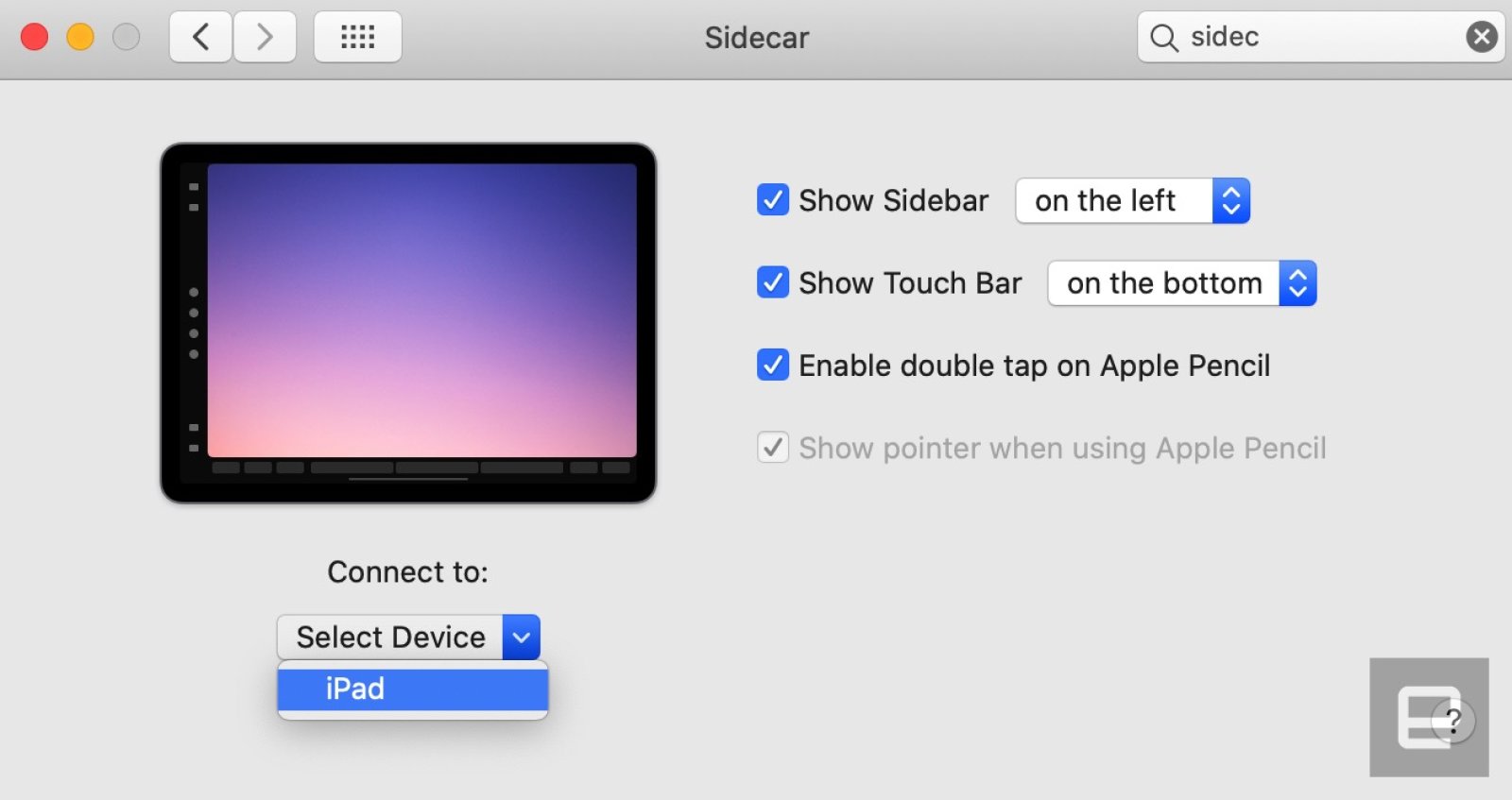
As mentioned, Sidecar is a feature that allows you to use an iPad as a secondary display. This works wired or wirelessly, with options to either extend or mirror your desktop. At first this might seem like a niche feature, and it is, but I can think of a few scenarios where it could be useful. For starters, what if you want a second screen but don’t want to buy a monitor or don’t have much room for one. Personally, I was testing this setup with a 27-inch iMac as my primary machine, so I didn’t really need a second screen. But what if I had a 13-inch MacBook Air or Pro?
If I wanted I could use that iPad mainly to give Messages or Slack its own screen, which would be reasonable enough. But things get interesting when you make use of the Apple Pencil, which of course wasn’t designed to be used with Mac apps. For starters, if you take a screenshot you can select “share to iPad” from the Markup menu on the Mac, and then it’ll appear on the iPad, in a touch-friendly interface, complete with onscreen paintbrush and pen options. As you mark up the screenshot on the iPad, you’ll see it update in real time on the Mac, where you left it. Hit save and the updated version will be available on both devices.
Though I’m not sure how many people feel the need to mark up a screenshot. A more likely use case might be creative apps that work with the Apple Pencil. Any app with stylus support will work. For the purposes of my testing, I tried Affinity Photo. I launched the program on my Mac and was then able to drag that window off-screen to make it appear on my iPad Pro.
I could have gotten to work immediately, but instead I hit the green stoplight on the iPad Pro app to bring it full screen, at which point the interface transformed into something more tablet friendly. From the iPad, I drew an abstract thing using the Pencil. Now that I’ve saved the file and dragged the application window back over to my macOS desktop, I can continue making finer edits from there. You know, if I were artistic.
Likewise, you can begin a sketch on the iPad and export it the other way. From a document or Note on the Mac, you can select “add sketch” from the “Import from iPhone or iPad” menu, at which point a sketch interface will open on the iPad.
Throughout, you’ll notice a sidebar on the iPad when Sidecar is enabled, giving you access to the Command, Option, Control and Shift keys, along with an undo button. There are also icons for hiding and showing the menu bar, Dock and keyboard. Additionally, Sidecar on the iPad supports the sort of Touch Bar commands that you’d normally find on the secondary display on newer MacBook Pros. Here, they show up at the bottom of the iPad display, though you can hide them too if they ever get in the way.
Screen Time
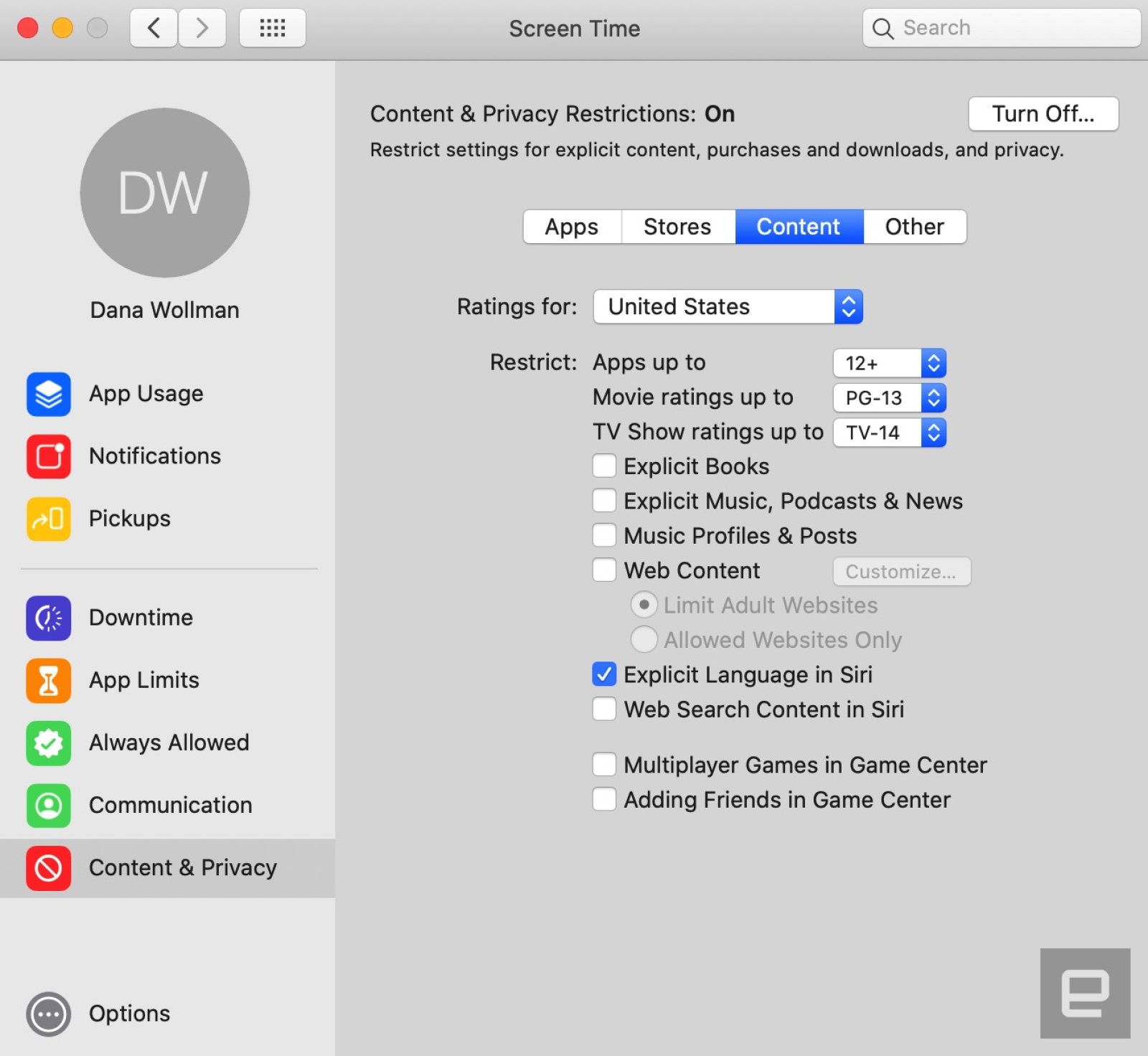
Another no-brainer move from iOS to the Mac: Apple’s Screen Time controls. It would be inaccurate to describe these purely as parental controls, because a grown-up could use it to gauge which apps and notifications are sucking up the most time. That said, most of the options here — content restrictions, enforced media ratings, app time limits — seem designed for parents. If you wanted, you could block certain apps altogether; prevent a child from installing or deleting apps or making in-app purchases; or select age ratings for apps, movies and TVs, with separate options to exclude books, music, podcasts, Apple News stories and websites with explicit content.
You can also block web searches from Siri and prevent your kid from joining multiplayer games in Game Center or adding friends there. Lastly, on a systems level, you can prevent changes to the passcode, user account, Do Not Disturb While Driving settings, TV provider or even the volume level. Regardless of your parenting style, it’s clear that the options are granular for those who want that degree of control.
Accessibility
Voice Control
Apple only presented one accessibility feature in its two-plus-hour WWDC keynote this year, but it’s one that could make a big difference. Voice Control is exactly what it sounds like: a way to control both macOS and iOS with one’s voice, including launching and navigating apps, dictating messages, inserting emoji and laying out documents.
To try and make this experience minimally tedious, Apple added a number of conveniences and shortcuts. Some of these rely heavily on contextual speech: the ability to say “delete that” or “capitalize that” and have the machine know you weren’t dictating those words. There’s also a so-called Numbers option so that, if you find yourself in an app with dense menus, you can assign each option a number and say the number of what you want.
Additionally, you’ll find word and emoji suggestions, which should hopefully save users some time. Similarly, you can add custom words as well as record commands for things you do on your iOS device, like sending a message with fireworks. Other tricks include spoken gestures (e.g., “tap,” “swipe,” “pinch,” “zoom”) and a grid option that allows you to zoom in on the part of the screen you want.
For those worried about an always-listening Mac or iOS device, Apple is quick to note that all of the processing happens on the device itself. You also have the option of either a dictation mode or a more limited command mode, meant purely for using voice commands. On iPhones and iPads with a TrueDepth camera, there’s also an Attention Awareness mode that shuts off Voice Control when you’re looking away from the device and talking to a friend, for example. You wouldn’t want the machine to pick up that conversation and confuse it for dictation or a command.
Improvements for the blind and hearing-impaired
What you might not have known is that although Apple focused on Voice Control at WWDC, macOS brings several improvements for blind and hearing-impaired users as well. Users with visual impairments can use Siri for Voice Over. Apple also simplified the way navigation works using the Tab key and made it so that if you make a customized recording for how a certain form of punctuation should be spoken, that’ll be stored to iCloud and synced across all your macOS and iOS devices. Lastly, developers using Xcode will find Voice Over can now read warnings, line numbers and break points.

As for Zoom, a feature called Hover Text gives you a high-resolution zoom-in on text, displayed in its own window. To make that show up, just press the Command key while hovering over text with your cursor. You can also click buttons and interact with text from inside that dedicated window. Meanwhile, an option called Zoom Display lets you stay zoomed in on a secondary monitor, even if you choose to view text from the default distance on your primary machine.
Everything else
There’s a lot of miscellany in this release that I haven’t mentioned yet, either because these things are really minor or difficult to actually test. Here are some of the more interesting things to look out for:
- The ability to share folders in iCloud Drive.
- Native integration in Finder for third-party cloud services like Dropbox, Box and OneDrive.
- You can now approve many security prompts from your Apple Watch.
- Gatekeeper checks apps for known security issues before you run them for the first time and periodically after that.
- Macs with Apple’s T2 security chip now have an Activation Lock similar to what already exists on iOS devices, wherein if the device is lost or stolen the rightful owner is the only one who can erase and reactivate it.
- macOS Catalina will offer a security prompt before allowing an app to access data in the desktop, Documents, Downloads, iCloud Drive, removable media or folders for third-party cloud services. You’ll also be asked for permission before an app can perform key logging or take a still or video capture of what’s happening on your screen.
- A streamlined view of your iCloud account in System Preferences, with your Apple ID listed right up top. This new settings menu combines your account info, iCloud settings, Family Sharing settings and media subscriptions in one place.
- If a software installation goes wrong, you can restore your machine to a so-called Snapshot of right before the botched install.
- You can set up your system to be multilingual even from the initial installation.
- Users in India get an India-specific Siri voice, available in male and female versions.